
Local LLM Setup the Easy Way
In our last post, we talked about the philosophy of AI Sovereignty—why relying on corporate cloud endpoints is basically like building a house on rented land where the landlord can change the locks whenever they feel like it.
Today, we stop theorizing. Today, we break out the tools.
We are going to build your local llm sovereign sandbox. By the time you finish this guide, you will have an entirely offline, un-censorable, zero-subscription AI ecosystem running directly on your own hardware. No cloud tokens. No hidden bills. No corporate guardrails wagging their digital fingers at your creative workflow.
Here is your blueprint for the Sovereignty Stack: Ollama, LM Studio, and AnythingLLM. Let’s get our hands dirty.
Table of Contents
The Master Plan: What We Are Building
To build a functional local LLM AI, you need three distinct layers:
- The Engine (Ollama): A lightweight, terminal-based powerhouse that handles the heavy lifting of running models in the background.
- The Laboratory (LM Studio): A beautiful, graphical interface meant for testing different models, tweaking temperatures, and running local API servers.
- The Brain/UI (AnythingLLM): The ultimate frontend that connects to your engines and allows you to dump your personal files (PDFs, TXT archives) into a localized vector database for absolute privacy RAG (Retrieval-Augmented Generation).
Step 1: Fire Up the Engine (Ollama Installation)
Ollama is the absolute gold standard for running open-source models without bloated overhead. It runs quietly in your system tray and exposes a local API that other apps can talk to.
1. Download & Install
Head over to the official site and grab the installer for your OS:
- Download Link: https://ollama.com (this is the time to start researching the Local LLM you want!)
Run the installer. It’s a standard “Next, Next, Finish” situation. Once installed, you’ll see a little stylized llama icon chilling in your Windows System Tray or Mac Menu Bar.
2. The PowerShell Playground
Now, let’s make sure Windows actually knows it’s there. Fire up PowerShell as an Administrator (Right-click PowerShell -> Run as Administrator) and run a quick verification check:
PowerShell
# Verify Ollama is alive and responsive
ollama --version
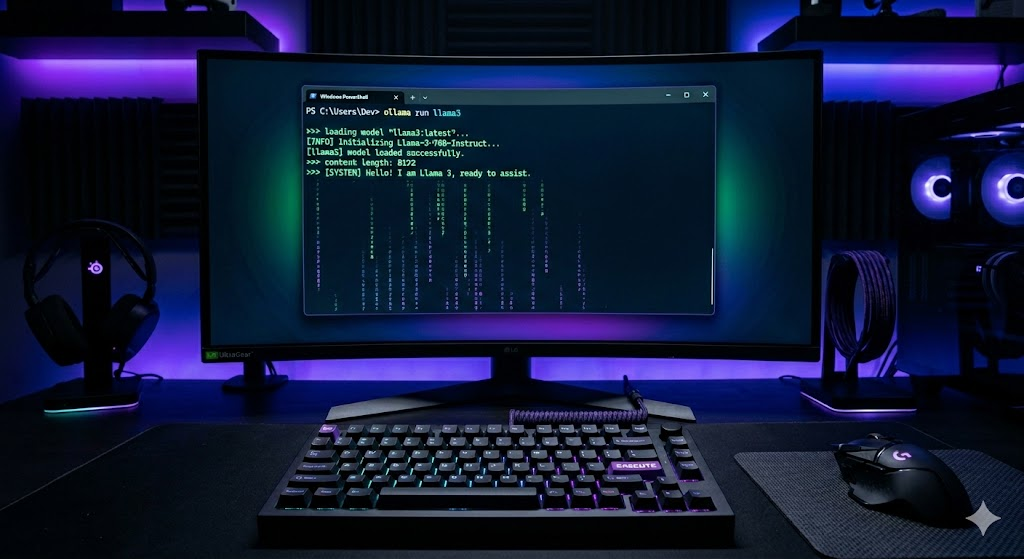
If it spits back a version number, congrats—the engine is purring. Now let’s pull down a Local LLM Setup model. For a balanced setup (good speed, decent intelligence), we are going to grab Meta’s Llama 3 or Mistral. Run this command:
PowerShell
# Pull and automatically run Llama 3 locally
ollama run llama3
Warning: If you don’t have a dedicated GPU (NVIDIA RTX or Apple Silicon), your computer fans are about to sound like a Boeing 747 taking off. This is normal. Embrace the heat; that’s the smell of freedom but can be optimized to make any Local LLM purr.
Once the download finishes, PowerShell will drop you directly into a live chat prompt. Type a message to test it out. To exit the chat and return to the normal terminal, type:
PowerShell
# Exit the active chat session
/exit
Useful PowerShell Commands for Ollama:
Keep these commands handy in your terminal cheat sheet for your Local LLM:
PowerShell
#See what models are currently downloaded on your hard drive
ollama list

#See what model is actively running and consuming your RAM right now
ollama ps

#Delete a model to free up space when you're done experimenting
ollama rm llama3
Step 2: The Model Lab (Setting Up LM Studio)
While Ollama is great for efficiency especially if you hardcode your Local LLM via powershell, sometimes you want to explore the deepest corners of Hugging Face, download raw .gguf files, and visually fiddle with system prompts or context lengths. That’s where LM Studio and especially AnythingLLM shines for Local LLM’s.
1. Download & Install
2. Sourcing Your Models
Open LM Studio. On the left sidebar, click the magnifying glass icon (Search). This links you directly to Hugging Face, the wild-west repository of open-source AI. For any Local LLM you have, settings are interchangeable with AnythingLLM, just comment if you need help with the right options.
- Search for
Llama-3-8B-Instruct-GGUForMistral-7B-Instruct. - Look for the Q4_K_M or Q5_K_M quantization variants. These are optimized formats that give you 95% of the model’s original intelligence while using a fraction of the VRAM. Click download.
3. Spinning Up Your Local LLM Server
One of LM Studio’s secret weapons is its ability to mimic OpenAI’s API structure perfectly.
- Click the double-headed arrow icon on the left panel (Local Server).
- Select your downloaded model from the dropdown at the top.
- Click Start Server.
By default, it will host your model locally at http://localhost:1234. This means you can point any script, automation workflow, or alternative UI at this URL, and it will think it’s talking to ChatGPT—except it’s running completely offline inside your room.
Step 3: Architecting the Brain (AnythingLLM Deployment)
Now we connect the stack together. AnythingLLM is where the magic happens. It serves as your main workspace UI and comes baked-in with a local LLM vector database, allowing you to build your own personal RAG system.
1. Download & Install
- Download Link: https://anythingllm.com
2. Binding the Software Together
When you launch AnythingLLM for the first time, it will ask you to select your AI Provider. This is where we wire up our infrastructure:
- Option A (Connecting to Ollama): Select Ollama as your provider. Set the URL to
http://localhost:11434(Ollama’s default port). Select the model you pulled earlier (llama3). - Option B (Connecting to LM Studio): Select LM Studio as your provider. Set the endpoint to
http://localhost:1234/v1.
3. Building a Sovereign Workspace
Create a new workspace and name it something clean (e.g., WhisperVault).
Look at the workspace dashboard. You’ll see a section where you can drop files. This is where you reclaim your context. You can upload .txt files, full PDFs, or complete markdown conversation archives.
- Drag your archives into the upload zone.
- Click Move to Workspace and then click Save and Embed.
AnythingLLM will automatically take your documents, slice them into tiny cryptographic chunks, and store them in a local LLM vector base. When you chat in this workspace, select the “Query” mode. The AI will read your files first to formulate its answers, pulling accurate context from your real data without sending a single byte to an external server.

Troubleshooting Your Sovereignty Stack
If things aren’t communicating smoothly, check these common choke points:
- The Port Conflict: If AnythingLLM can’t find Ollama, verify Ollama is actually running in the background. Open PowerShell and check if the port is listening by running:PowerShell
Get-NetTCPConnection -LocalPort 11434 -ErrorAction SilentlyContinueIf it returns a blank line, restart Ollama from your desktop. - Out of Memory (OOM) Crashes: If your chat completely freezes mid-sentence, you chose a model that is too massive for your computer’s RAM/VRAM. As a rule of thumb:
- 8GB – 16GB RAM: Stick to 3B or 7B/8B models (Quantized).
- 32GB+ RAM: You can safely start playing with 14B or 32B models.
- 70B+ Models: Don’t even try it unless you have dual dedicated GPUs or a high-end Mac Studio. Otherwise, your computer will crawl at 0.5 tokens per second, which is slower than typing with a feather quill.
Conclusion: You Own the Mainframe Now
You’ve done it. You’ve successfully moved past being a passive consumer renting tokens from multi-billion dollar tech monopolies.
You have an engine (Ollama), a testing lab (LM Studio), and an indestructible vault of personal data (AnythingLLM) working completely under your local command. This infrastructure forms the backbone of every automation tool, autonomous assistant, and secure internal system we build moving forward at WhisperTechAI.
The boundaries and safeties are down, the server is live, and the memory is yours. What are you going to build inside your sandbox today, your Local LLM is yours afterall!
We are constantly building everyday, for more of what we have check out: The Loop | The Greatest and Latest Posts from WhisperTechAi
Pingback: Architecting Powerful AI Sovereignty & Persistent Memory